Custom content
In Kemoverse Online, custom content refers to content you (the player) can create for your own enjoyment or to help development. Thus, this page contains information how it works and how to make it.
Content
Scripts
See scripting.
Instruments
Create .sf2 files. (Work in progress)
TTS addenda
Annoyed that some words aren't pronounced correctly and don't want to create autotexts / only care about correcting it for yourself? Make your own lexical additions (and share them if you want)! Open up the game's data folder (Windows: %appdata%\tko) (Linux: ~/.config/local/TKo/). Create a file called "lexicon.txt" and enter this text:
# This is a comment
text : hh eh0 l ow0
This is a lexical pronunciation file ("addenda") that is re-applied when you focus back in to the game. In this example, when writing "test" in the game, your character pronounces it as "hello" as spelled out by the phonemes ("hh eh0 l ow0"). You can refer to the TTS library (Festvox/Flite) phonome page for a reference.
Patterns
You can create custom body and clothing patterns for use in the game! Create the texture first using the appropriate template in the gallery below, and then head to the character creator. Make sure "Use simple shaders" is toggled off!
- Create a new character if you want to preview a new body pattern.
- Press Ctrl+Shift+O to open the file load dialog, find your file, and load it.
Or...
- Go to the wardrobe as any character to preview a new clothing pattern.
- Hold Shift+Ctrl and click the dropdown list to open the file load dialog, find your file, and load it.
Then:
- Preview how the pattern looks on the character. If you select a built-in pattern, you have to load your pattern again.
- Make changes in your art program and resave the file. When you focus back in to the game, the new pattern will be reloaded.
Pattern textures use the Red, Green, and Blue channel to 'paint' the custom colors. See the example below for how a pattern should look like - red where the first color should be at, green where the second color should be at, blue where the third color should be at. So, to make it clear, patterns only use red, green, and blue to know where to paint the customized colors! No white, black, or transparency!
Also, if you want to blend the different channels together (e.g. have a spot with multiple color influences) then you have to use the layer blending mode 'Add' to prevent the normal blending darkening the colors!
Some tips...
- As you're editing, pay attention to any visible seams or deformations using the posing keys! (Shift+G/Ctrl+G) Some warping is unavoidable, but if it looks good when standing or walking, it should be okay.
- Prioritize how your texture looks over how it looks in-game, because in the case the shirt changes in the future, it would only try to make the patterns look better.
- Please note that previewed patterns are not saved, uploaded, or otherwise visible to others! It's strictly an offline-only tool for creating patterns!
-
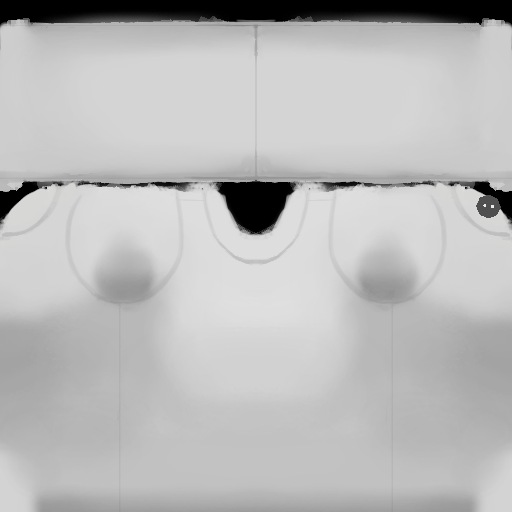
Shirt template (all sleeve lengths)
-
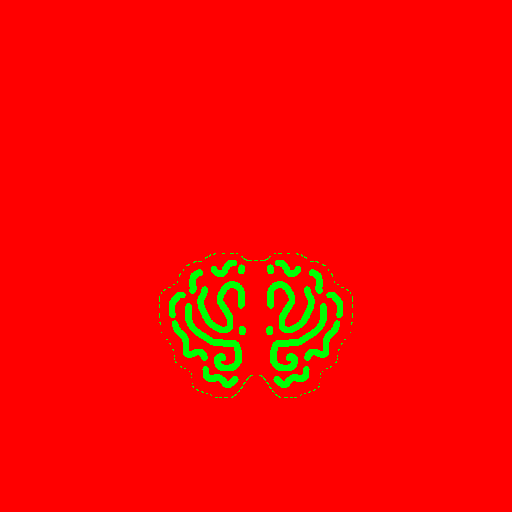
Example shirt pattern
-
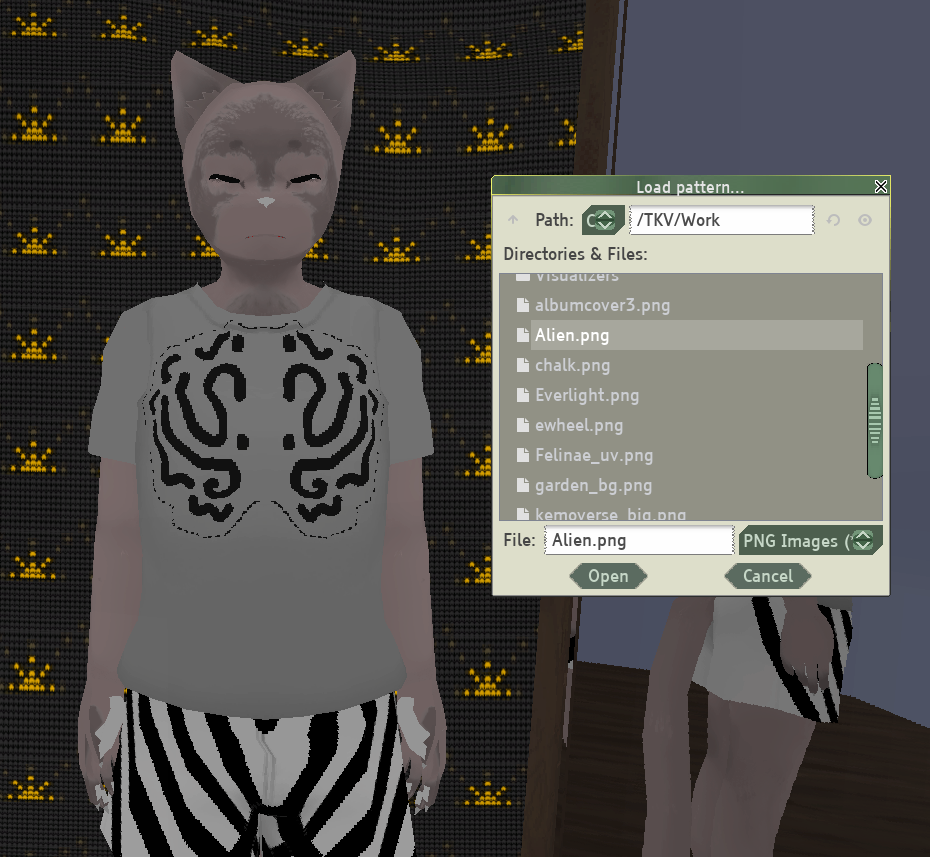
The resulting test pattern applied in-game


-
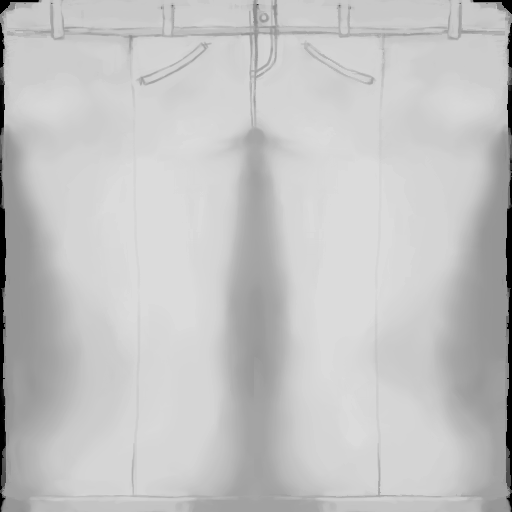
Pants template (all lengths)

-
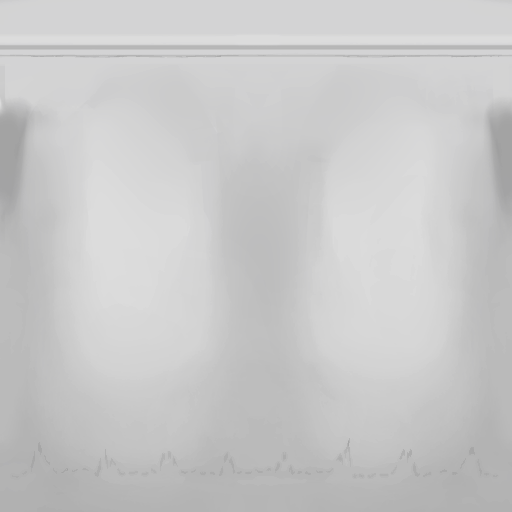
Skirt template (all lengths)
